Compare Runs & Read a Report
Compare two completed evaluations to see how a system change affects the measured scores. Start with two runs created through the model evaluation tutorial, retaining both run IDs.
The Run Compare page puts two views of completed evaluation runs in one place: an aggregate scorer comparison followed by a per-input diff. Run A is the baseline and Run B is the candidate.
Getting There
Open a project and choose its Runs tab. Compare 2 runs stays visible above the evaluation-runs table and is enabled only when exactly two completed evaluation runs are selected. With zero, one, or more than two selected runs, hover the disabled button to see the selection requirement. Failed or in-progress evaluation runs cannot be selected, and non-evaluation pipeline runs stay in the separate table without comparison checkboxes.
Clicking Compare 2 runs opens the project-scoped /runs/compare page with the selected run_a, run_b, and project_id. The project name appears between Runs and Compare in the breadcrumb and returns to that project's Runs tab.
You can also deep-link directly with /runs/compare?run_a=<id>&run_b=<id>&project_id=<id>. The project_id is required; the removed unscoped URL redirects back to Runs. If that project can no longer be resolved, its breadcrumb is omitted and access to the selected runs is still decided by the run endpoints. When the project does resolve, an accessible run from another project is rejected before comparison data loads.
Selecting the Two Runs
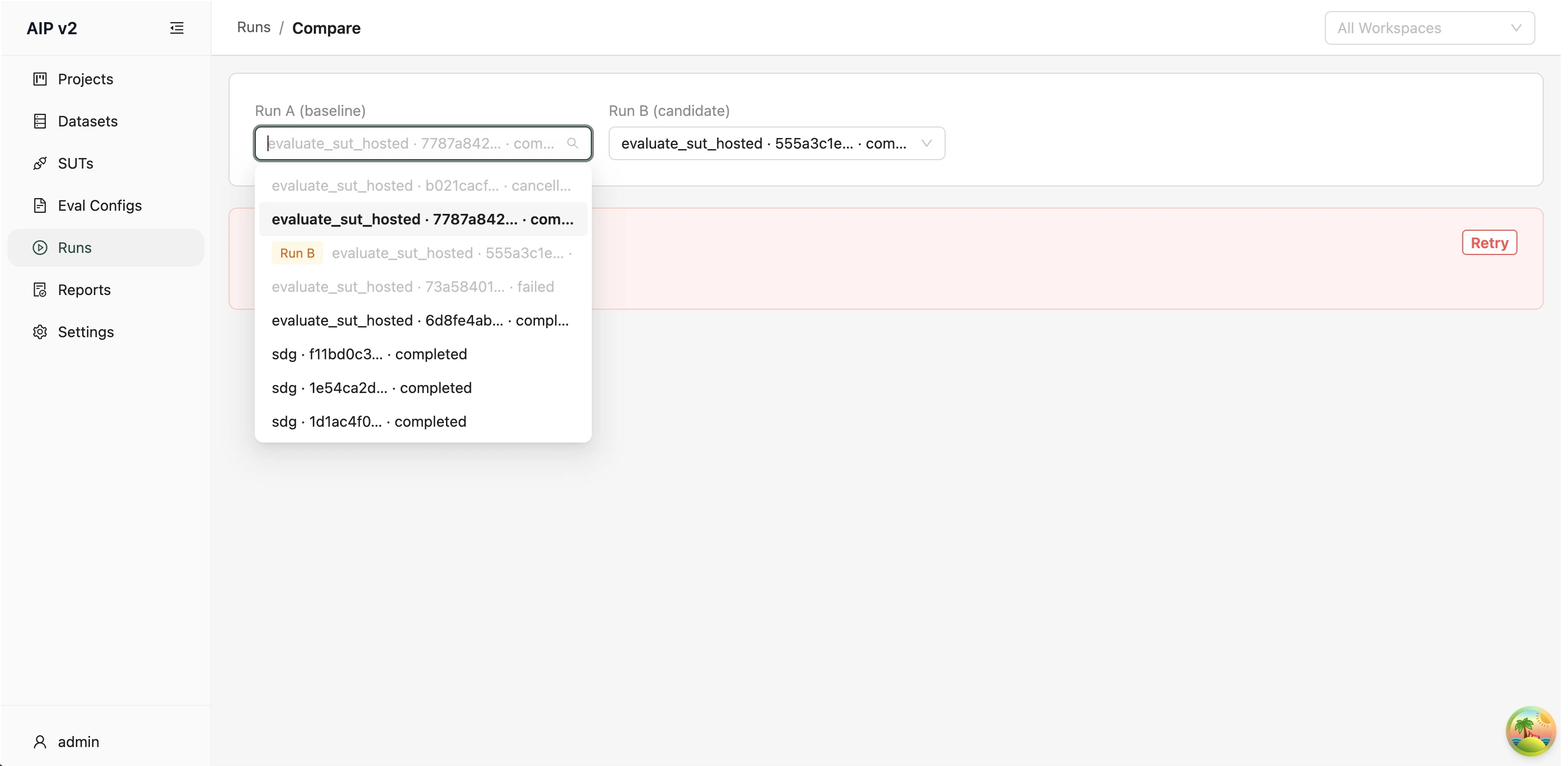
The project selection becomes Run A and Run B on the compare page. Use the two selectors to replace either run when needed. The selectors remain scoped to the source project, and only completed evaluation runs are eligible. The run chosen for Run A is disabled in the Run B list (and vice versa) and appears with an orange Run A / Run B tag so you can see why it is unavailable.
Reading the Scorer Comparison
The Scorer comparison card shows the union of scorer outputs across both runs. Each row contains the scorer, both aggregate mean values, and the effective direction recorded when each run was scored.
- For Higher is better, the larger displayed value is green (winner) and the smaller value is red (loser).
- For Lower is better, the smaller displayed value is green and the larger value is red.
- Inverted stored scores use their effective stored direction, so the verdict still matches the values shown.
- Values equal at four decimal places stay neutral.
- A scorer present on only one run stays neutral and the missing side shows an em dash.
- Missing or conflicting direction metadata stays neutral; the UI does not guess whether higher or lower is better.
- Winner and loser cells include ▲ and ▼ glyphs in addition to colour, so the verdict does not depend on red/green perception.
The scorer summary and per-input diff load independently. If one request fails, the other section can still be used. A deleted or unknown selected run from a stale deep link reaches both requests and shows Run not found in each affected section.
Reading the Diff Table
Below the scorer summary, the Per-input diff card focuses on one explicitly selected primary metric. The selector defaults to the first available scorer and updates every test-case row together, so values from differently scaled metrics are never ranked against each other.
The table renders one row per input_id, joined across the two runs. Top-level columns:
| Column | Meaning |
|---|---|
| Test case | The evaluated row's input_id. |
| Status | How the input appears across the two runs (see below). |
| Run A / Run B | The selected primary metric's value for each run. |
| Change (A − B) | The selected metric's signed arithmetic change. |
Status tags:
| Tag | Colour | Meaning |
|---|---|---|
| matched | grey | The input exists in both runs. |
| new | blue | Present only in Run B (the candidate). |
| missing | orange | Present only in Run A (the baseline). |
Expand a row (the + control) to see every remaining metric as Scorer / Run A / Run B / Change (A − B). Changes use neutral styling because a positive or negative value alone does not say whether the candidate improved; that depends on the scorer's direction. An — (em-dash) means there is no comparable score for that run or metric.
Sorting and Filtering
The Primary metric selector is available immediately and changes the metric shown in the top-level comparison. The Status filter and sortable column headers remain disabled until server-side filtering and sorting are available; hovering the status control shows "Server-side sort/filter coming in a future release." Rows are returned pre-joined and paginated; the footer shows "Showing N of M row(s)" and a Load more button appears when more rows are available.
Continue with report creation and export.